UNIVERSAL Wifi User Guide

Modified on Thu, Oct 1 at 1:09 PM

Pocket WiFi User Guide

〈How to Connect〉

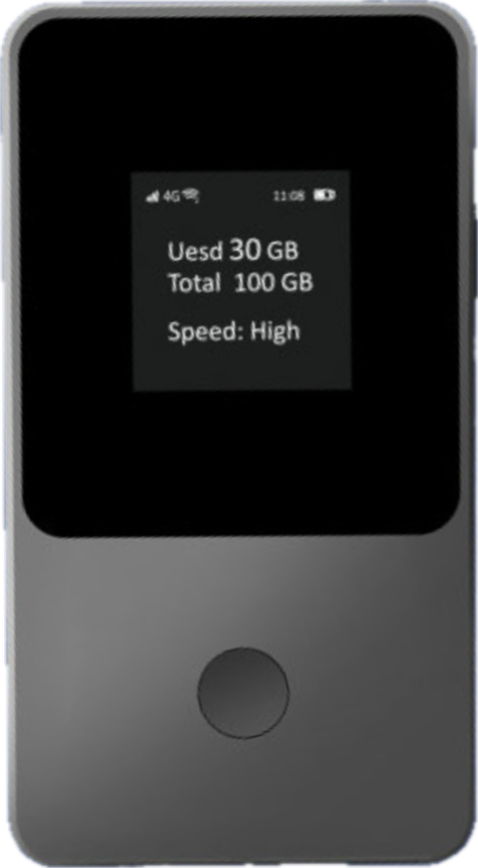
1. Press and hold the power button on the right side of the WiFi device for about 3 seconds to turn it on. Press the power button again briefly, or press the screen display toggle button on the front of the device to turn on the screen.

2. On your device, such as a smartphone or laptop, turn on WiFi and find and select the SSID displayed on the WiFi screen.

3. When the password input screen appears on your device, enter the password (PWD) displayed on the WiFi screen.

* You will be able to connect to the Internet in the country specified in your plan from the start date.

〈Display Information〉

The screen displays the battery level, network connection status, data usage, and device information (SSID, PWD). You can switch the displayed information by pressing the screen display toggle button.

The display will automatically turn off after 30 seconds. You can turn the screen on or off by briefly pressing the power button or the screen display toggle button.

* The "Purchase Package" function is not available. Please do not scan the QR code.

〈How to Turn Off the Device〉

Press and hold the power button on the right side of the WiFi device for about 3 seconds to turn it off.

〈How to Charge〉

There is a charging port (Type-C) at the bottom of the WiFi device. Use a USB Type-C cable to charge the device from a power outlet.

According to the specifications, the device can be used for approximately 15 hours from a full charge. However, battery life may vary depending on usage and connection conditions. We recommend turning WiFi on only when needed to save power.

Troubleshooting Connection Issues

  • Restart the Pocket WiFi and the device you want to connect.
  • Try reducing the number of connected devices.
  • Wait for a while and try connecting again.
  • Check whether the WiFi setting on the device you want to connect has been accidentally turned off.

Was this article helpful?

That’s Great!

Thank you for your feedback

Sorry! We couldn't be helpful

Thank you for your feedback

Let us know how can we improve this article!

Select at least one of the reasons
CAPTCHA verification is required.

Feedback sent

We appreciate your effort and will try to fix the article