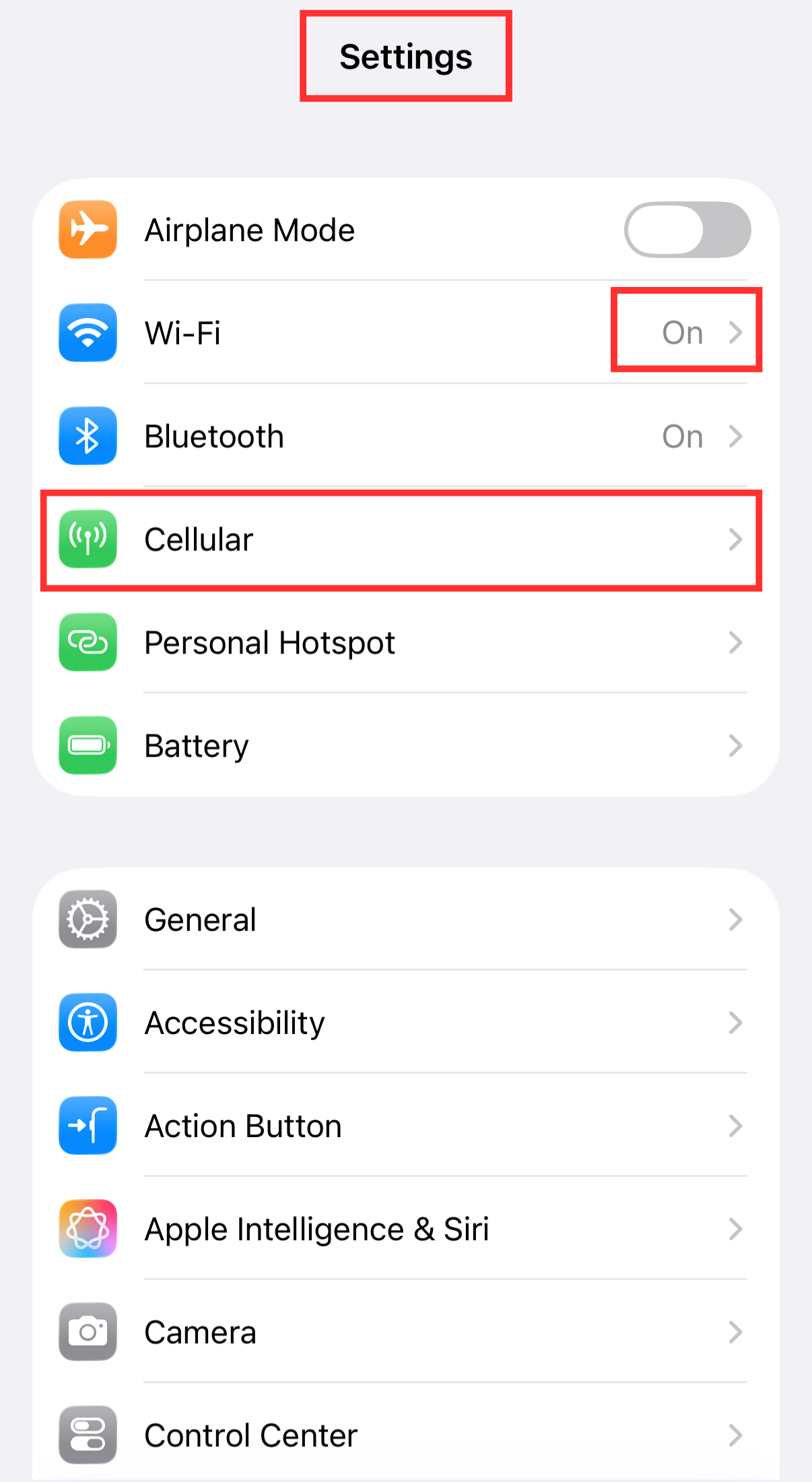
① Open the “Settings” app on your smartphone and tap “Mobile Service.”
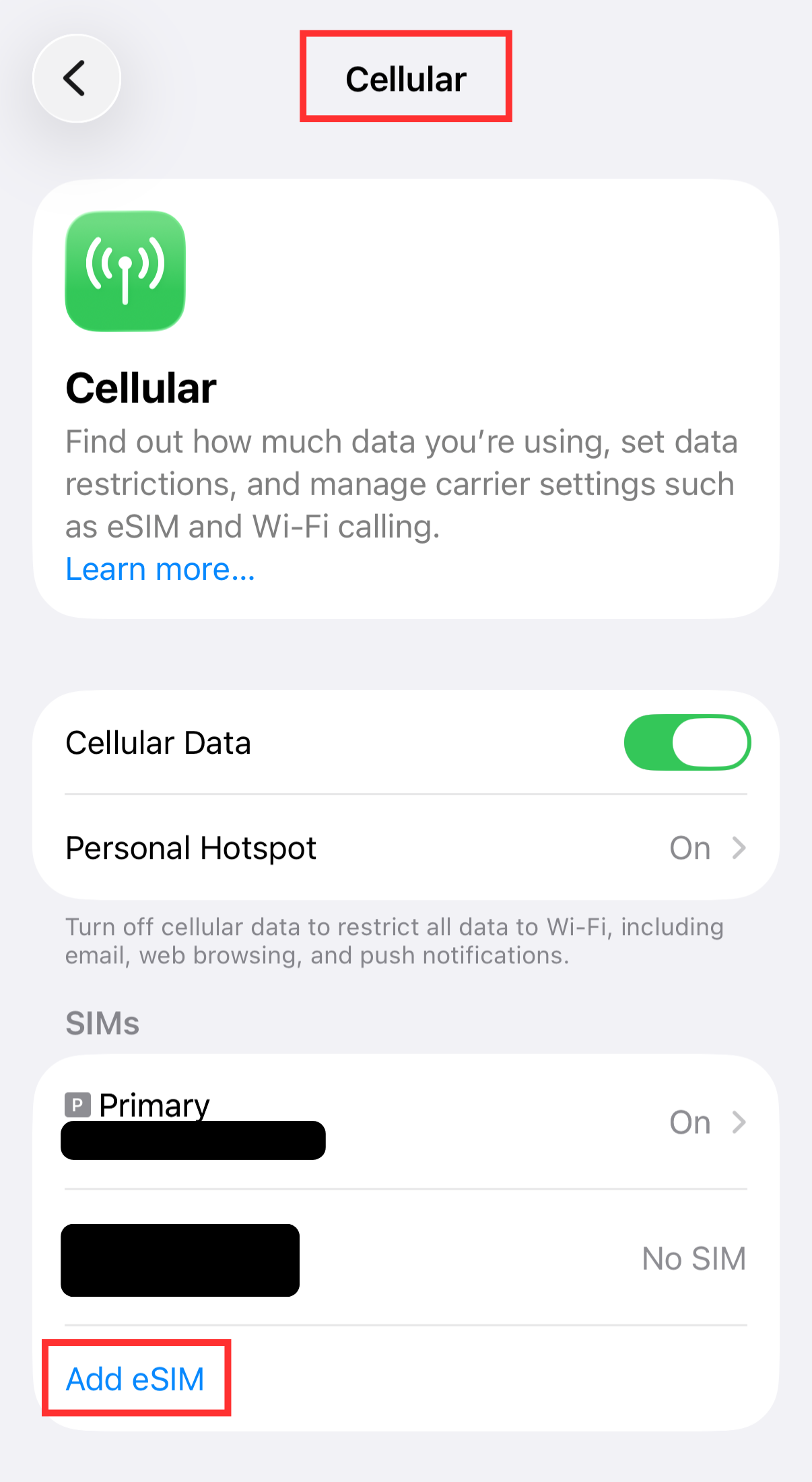
② Tap “Add eSIM.”
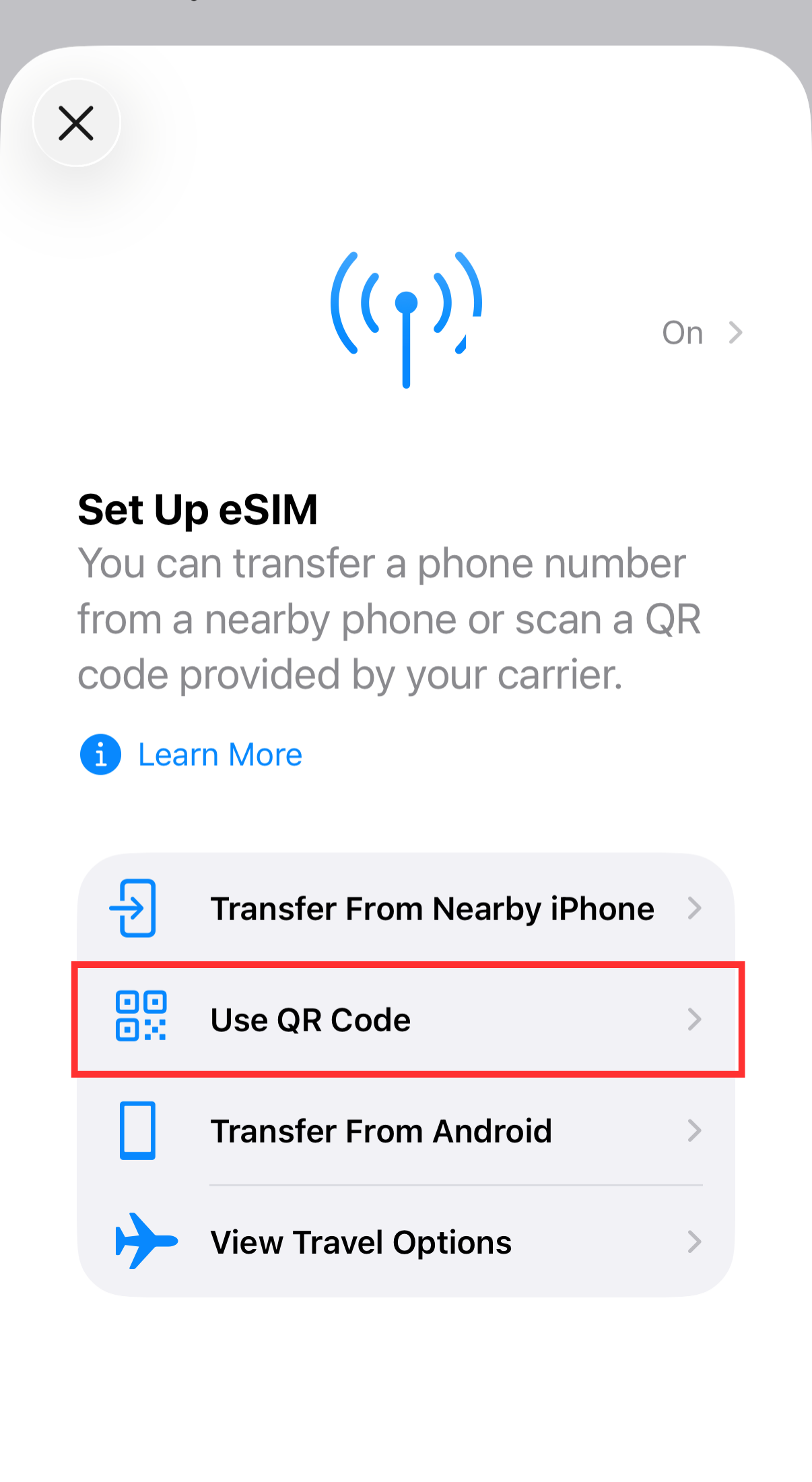
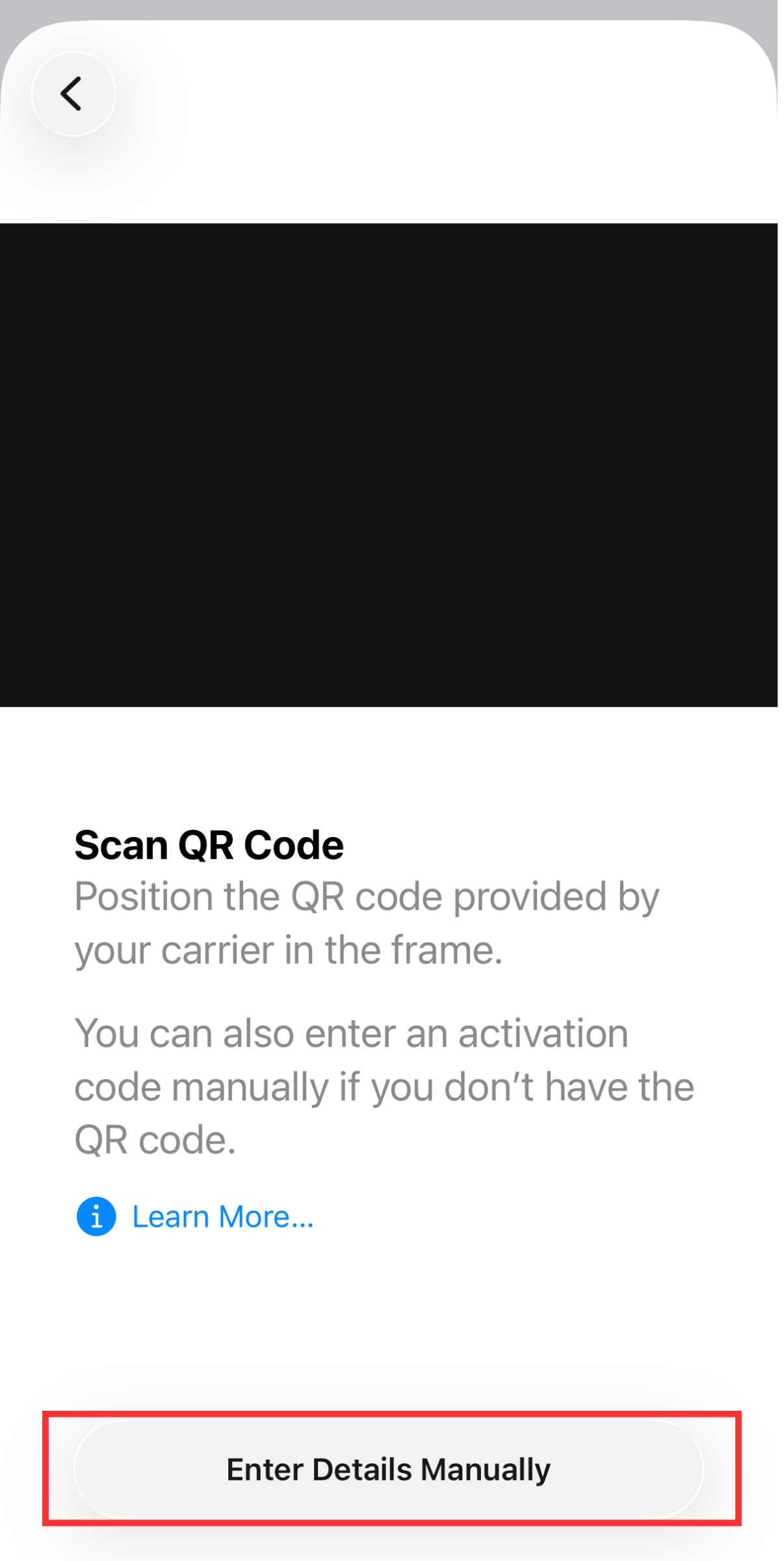
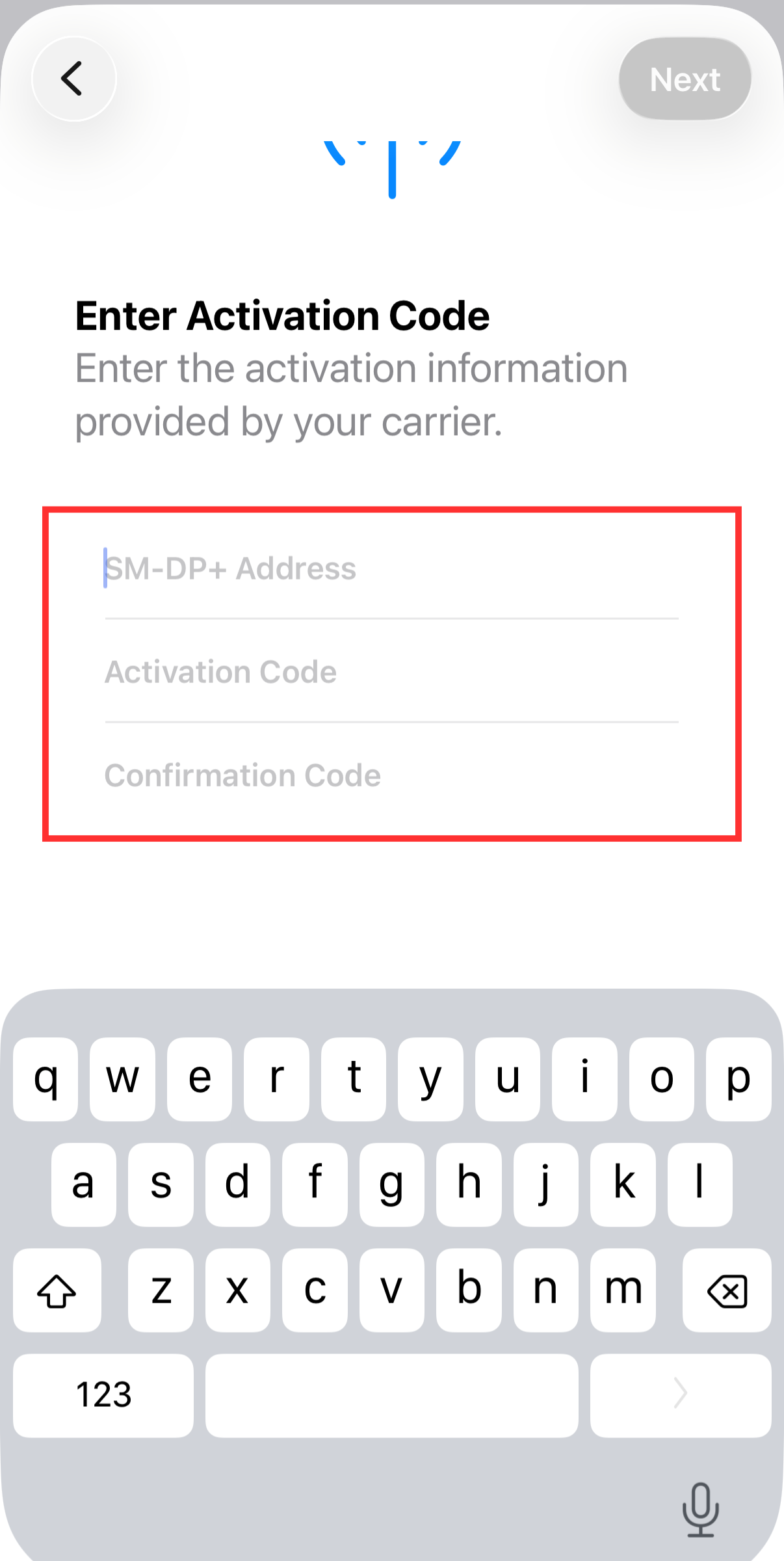
③ Tap “Use QR Code” → “Enter Details Manually.”
SM-DP+ Address: Enter T-MOBILE.GDSB.NET
Do not enter the Activation Code or Confirmation Code. Tap “Next” to continue.
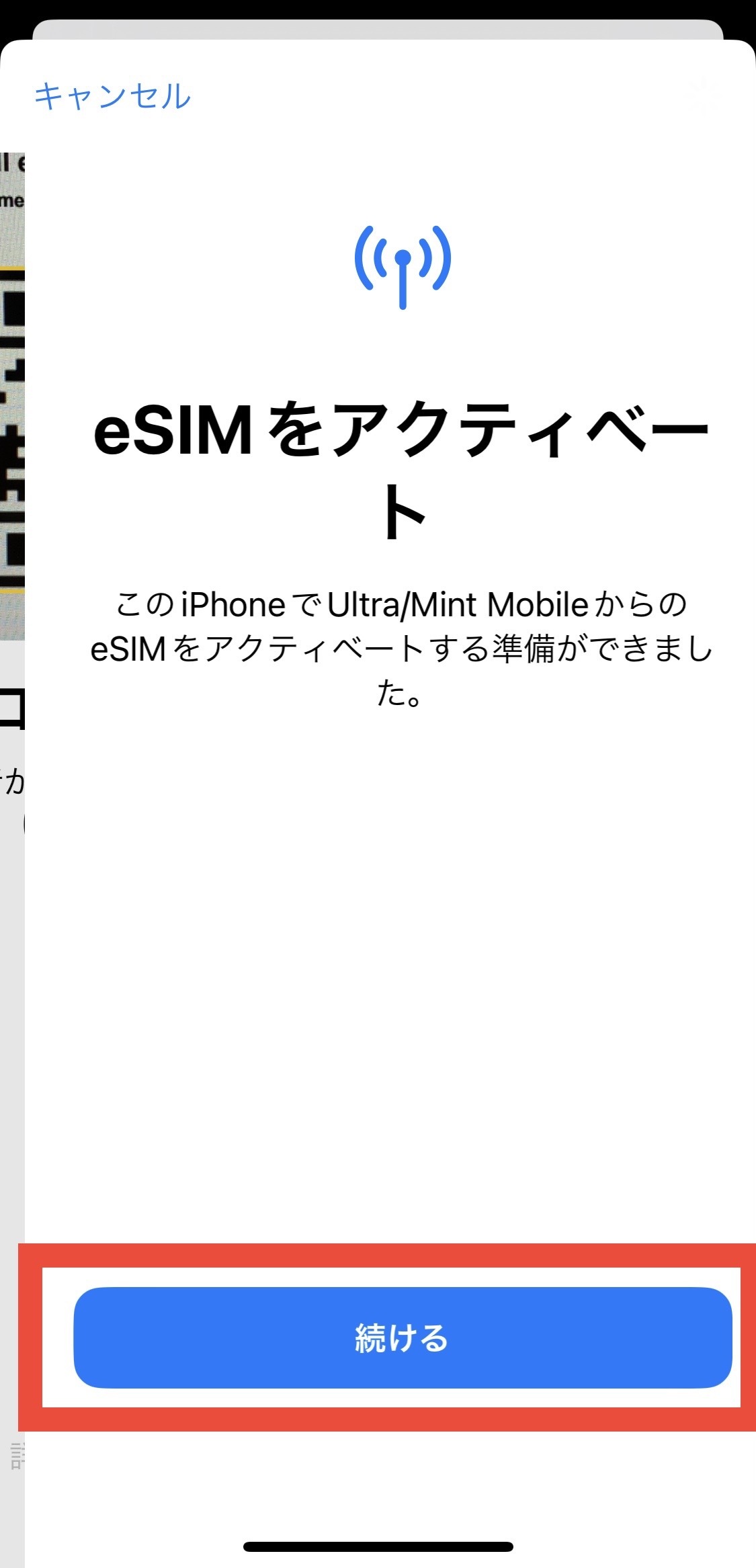
④ When “Activate eSIM” appears, tap “Continue.”
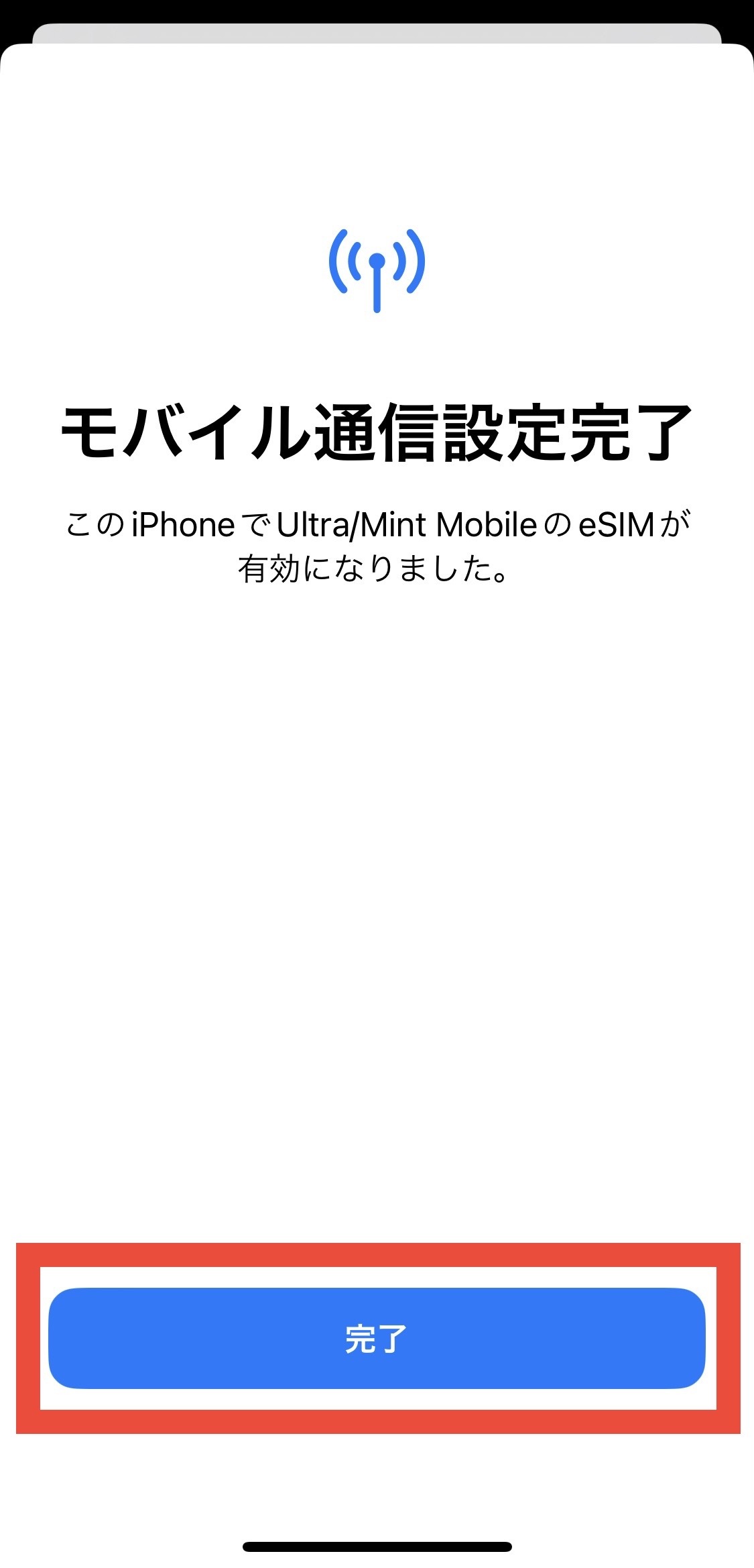
⑤ When “Mobile Service Setup Complete” appears, tap “Done.”
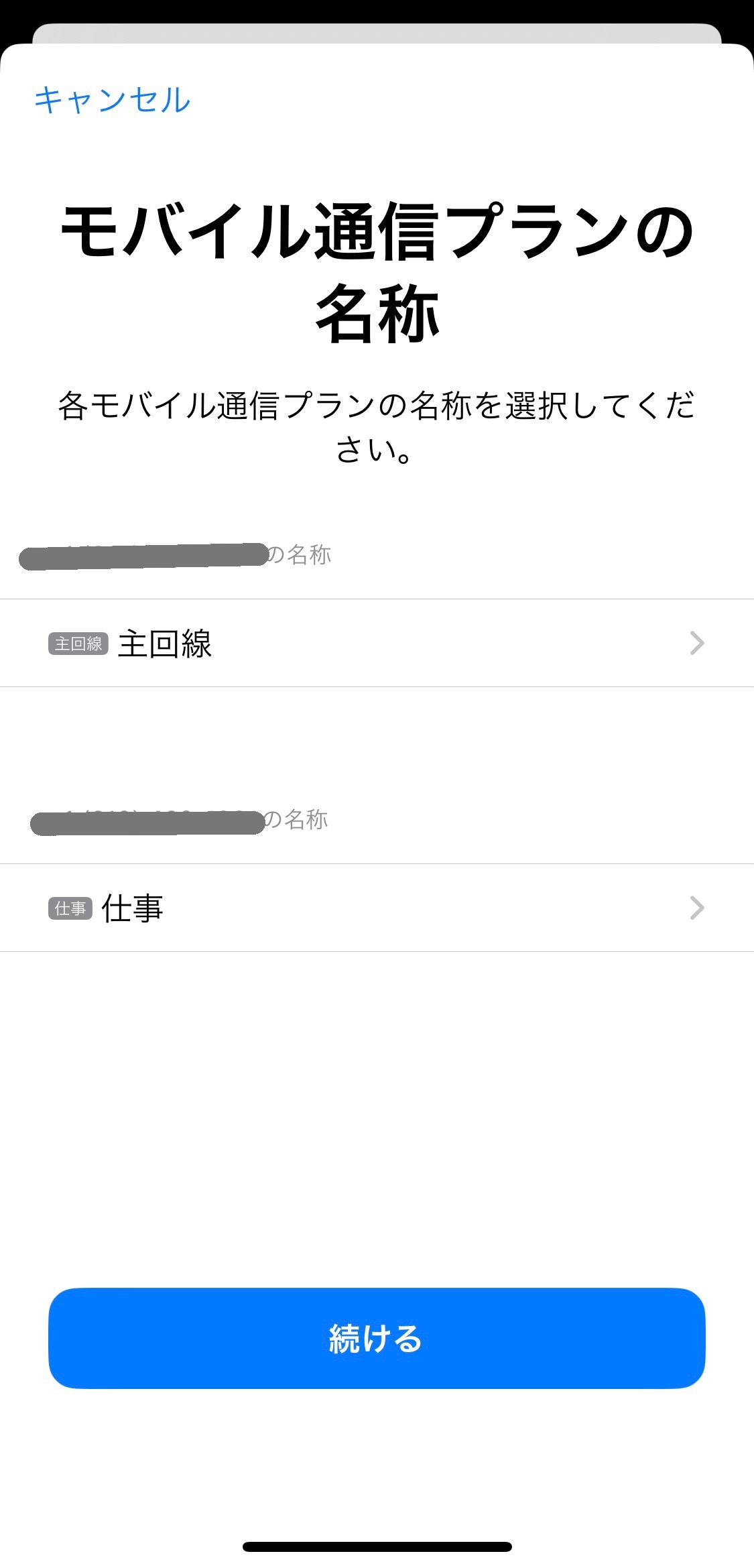
⑥ Set a name for your mobile service plan and tap “Continue.”
⑦ In the “Mobile Service” section of the “Settings” app, make sure that your phone number is displayed under “SIMs.”
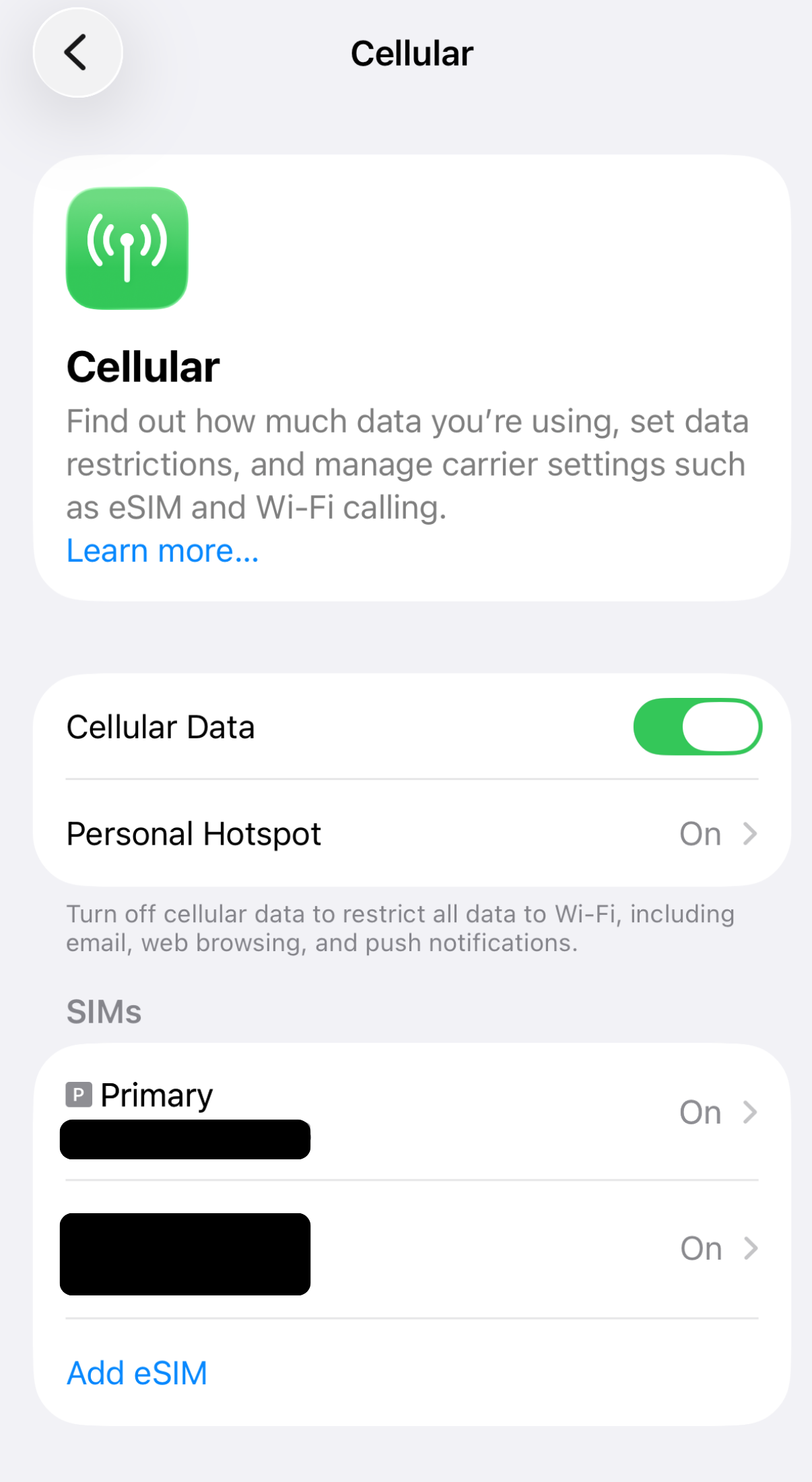
Once you confirm that your device has a cellular signal, the eSIM activation is complete.
=====================
Troubleshooting: If you are unable to add the eSIM
・Try adding the eSIM while connected to Wi-Fi.
・ Check for a carrier settings update and make sure your iPhone is updated to the latest version of iOS.
・ Turn Airplane Mode on for about 30 seconds, then turn it off again.
・ Reset your network settings.
“Settings” → “General” → “Transfer or Reset iPhone” → “Reset” → “Reset Network Settings”
※Please note that resetting your network settings will remove your saved Wi-Fi settings.
・ Turn off any VPN or antivirus/security apps (such as Norton).
Was this article helpful?
That’s Great!
Thank you for your feedback
Sorry! We couldn't be helpful
Thank you for your feedback
Feedback sent
We appreciate your effort and will try to fix the article